If you’ve ever been mid-Zoom call, scrolling TikTok, or trying to pull up a work document, only for your Wi-Fi to cut out entirely—right in the middle of a dead zone—you know how annoying this is. I’ve been in the router game for over 8 years now, and let me tell you: this is the #1 complaint we hear from new and returning customers alike. Most people don’t realize router dead zones aren’t a “broken router” problem 9 times out of 10. They’re a setup, placement, or settings problem. Today, I’m walking you through my go-to troubleshooting steps that I’ve tested on thousands of routers—no tech degree required, I promise. Let’s dive in. Routers
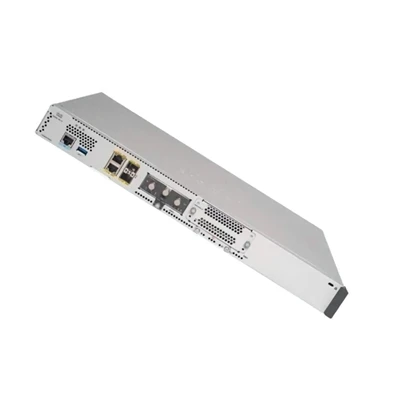
First things first: before you start messing with cables or settings, confirm it’s actually a dead zone, not just your device being dumb. I’ve had so many people come to us saying their whole house has no Wi-Fi, and it turns out their kid’s tablet was just set to airplane mode, or their laptop’s Wi-Fi toggle was accidentally switched off. That’s such an easy fix I can’t believe how many folks skip it. Grab a few devices—your phone, a work laptop, even an old tablet you haven’t used in a minute—and test the spot where you’re having issues. If none of them connect, or all drop out, then we’ve actually got a dead zone to fix. If only one device? You can save yourself the rest of this guide and just restart that gadget—90% of the time, that’s the fix.
Now, assuming we’re dealing with a real dead zone, let’s start with the simplest, most impactful fix that almost no one does right: router placement. This is the #1 mistake I see customers make when they first set up their router. They just plop it in a closet, under a desk, or on the floor near the TV, and wonder why their bedroom or backyard has no signal. Routers work by sending out radio waves, same as your phone or a Bluetooth speaker. Those waves don’t go through thick, dense stuff very well—like wood, metal, concrete, or even a full bookshelf crammed with textbooks. And they definitely don’t bounce straight down to the floor. So, rule number one: put your router up high. Aim for a central spot in your home, not hidden away. I recommend at least 5-6 feet off the ground, like on a shelf or a cabinet, not on the floor.
Next, get it away from interference. Any device that uses radio waves can mess with your Wi-Fi, and these days, half our home stuff does. Microwaves, baby monitors, Bluetooth speakers, cordless phones, even some smart bulbs—all of these operate on the same 2.4GHz band that most older routers use, and they’ll cause interference that kills signal in other rooms. So don’t tuck your router next to a microwave (that’s a quick way to lose signal when you’re heating up leftovers) or under a TV with a bunch of HDMI cables or a gaming console nearby. If you have a big metal appliance, like a refrigerator or a washer/dryer, keep your router at least 10 feet away from those too—metal is a total dead zone for Wi-Fi waves. I always tell customers: the more open, unobstructed space around your router, the better. No crowded closets, no stacked stuff on top of it, no metal blocking the sides.
Okay, so you’ve moved it to a central, high spot away from interference—still got dead zones? Let’s talk about bands and channels, which most people have no idea even exist. Your router sends two main Wi-Fi signals, right? 2.4GHz and 5GHz. Let’s break this down like I’m explaining it to my cousin who just got their first apartment. The 2.4GHz band is like a old, wide country road. It goes way farther, goes through walls better, but it’s super crowded—tons of people (your neighbor’s router, their baby monitor, the coffee shop down the street) are all using the same road, so it gets bumpy and slow sometimes. The 5GHz band is like a narrow, fast highway. It’s way quicker, but it doesn’t go through walls or far distances nearly as well. So here’s the rule: use 5GHz for devices that are close to the router and need speed—like your gaming PC in the home office, your smart TV in the living room. Use 2.4GHz for devices that are far away, like the smart thermostat in the attic, your backyard security camera, or your kid’s tablet in their bedroom. A lot of newer routers let you combine these into one network name, but if you’re having dead zones, splitting them into two separate names (like “HomeWi-Fi-5G” and “HomeWi-Fi-2.4G”) helps a lot. You can manually connect the right device to the right band, which cuts down on interference and dead spots.
Now, channels. Both bands are split into separate channels, like lanes on a highway, and if too many routers are on the same channel in your neighborhood, that’s a big reason for dead zones and slow Wi-Fi. Most routers are set to “auto-channel” by default, which is fine, but sometimes they pick the busiest channel without realizing it. How do you check? For most modern routers, you can download a free app (we even have a quick guide for our customers to do this, no extra tools needed) like Wi-Fi Analyzer. It scans all the channels in your area and tells you which one is the least crowded. Log into your router’s settings (you just type the IP address on the back of your router into a browser, put in the default username and password—again, we walk you through this) and switch to that less crowded channel. This is such a small change, but it can make a huge difference in hard-to-reach spots.
Still getting dead zones? Let’s talk about overcrowding and updates. A lot of people forget that their router is a tiny computer, and it gets overworked. If you have 10+ smart devices, plus 3 phones, 2 laptops, a gaming console, and a smart speaker all connected at once, that’s a lot for a basic router to handle. That overwork can cause weak signal or dead spots, especially during peak hours (like 7-9 PM when everyone’s home streaming). The quick fix here is to restart your router regularly—wait, not just turning it off and on for 10 seconds, I mean unplug it from the wall, wait 30 seconds, plug it back in, and wait 5 minutes for it to fully boot up. Do this once a month, and it keeps your router running smooth, same as restarting your phone fixes glitches. Also, check for router firmware updates. This is software that runs on your router, and manufacturers (including us!) release updates all the time to fix bugs, boost range, and cut down on dead zones. Most new routers have automatic updates, but older ones might need you to log in and check manually. If your router is 5+ years old, it might not get updates anymore, so that’s something to keep in mind.
Okay, so you’ve tried all the steps above, and you still have that dead spot by the back porch or the guest bedroom? It’s time to talk about range extenders, mesh Wi-Fi systems, or the easiest upgrade: a better router. Wait, hold on—don’t write off range extenders just yet, a lot of people hate them because they’re finicky, but when set up right, they work great. Range extenders basically grab your main router’s signal, amplify it, and broadcast it again in the dead zone. But the key is to put them halfway between your main router and the dead spot—too close, and they just repeat the same signal with no boost, too far, and they can’t grab the original signal at all. Mesh Wi-Fi is another option, and it’s way better for bigger homes. Instead of one main router, you add small “nodes” around your house that all work together to blanket every room in signal. No weird dead zones, and your devices automatically switch between nodes as you move around, no dropouts. For our customers with 3+ bedroom homes or backyards, mesh is our top recommendation, but it’s not for everyone. If you have a small apartment, a good placement, and a simple router might be all you need.
Wait, I’ve got a pro tip that most people never think about: check for physical obstructions you didn’t notice. I had a customer last month complain about a dead zone in their master bathroom, and we spent 20 minutes troubleshooting before realizing they had a giant medicine cabinet made of solid metal mounted right between their router and the bathroom. That metal was bouncing all the Wi-Fi waves back, so there was no signal in there. They moved the medicine cabinet, and it was fixed. Another customer had a dead zone in their playroom because of a wall full of concrete cinder blocks that the router couldn’t get through. Sometimes it’s the small, obvious stuff you miss because you see it every day.
Let me wrap this up with a quick recap so you don’t have to scroll back: first, confirm it’s a dead zone not a broken device. Then, move your router high, central, and away from interference. Split your bands, pick a less crowded channel. Restart your router monthly, check for updates. If that still doesn’t work, add a range extender (halfway!) or go with mesh Wi-Fi. If your router is 5+ years old, it might be time for an upgrade—we’ve seen old routers that can’t keep up with even basic streaming.
If you’ve tried all these steps and still can’t figure out that stubborn dead zone, our team is here to help. We work with homeowners, small businesses, and everyone in between to find the right router or solution for your space, no one-size-fits-all nonsense. If you’re looking to upgrade your Wi-Fi or troubleshoot existing issues, feel free to reach out to our sales team to start a conversation about what you need. We’re happy to walk you through every step, no pressure, no confusing jargon.

At the end of the day, dead zones don’t have to be a permanent headache. Most of the time, it’s a quick fix, not a total router replacement. But if you do need a new router, we’ve got options for every space and budget, from small apartments to big family homes. Don’t let a bad Wi-Fi signal ruin your day—reach out and let’s get you sorted.
Routers for Cisco References
- Federal Communications Commission. (2022). Wi-Fi Signal Propagation and Interference in Residential Environments.
- Wi-Fi Alliance. (2023). 802.11ax (Wi-Fi 6) Technology Overview and Range Optimization.
- Consumer Reports. (2024). Troubleshooting Common Home Wi-Fi Issues for Users.
AITI Tech Limited
AITI Tech Limited is one of the most professional routers suppliers for over 20 years, featured by quality products and good price. Welcome to buy bulk high-grade routers in stock here from our company. If you have any enquiry about pricelist, please feel free to email us.
Address: 6F, Haogong Building, Yannan Road, Futian District, Shenzhen, China
E-mail: require@hkaiti.com
WebSite: https://www.hkaiti.com/
